
Backing up Docker Containers without the Headache
Why Backing Up Docker Containers Matters
If you’re running apps inside Docker containers, you’re probably loving how easy it is to start, stop, and move services around. But what happens if your computer crashes, your server dies, or you accidentally delete something? Without proper backups, your data and setup could be gone in a blink.
Backing up Docker containers isn’t about saving the container itself — think of containers like disposable Lego builds that can be rebuilt anytime. What you really want to back up is the data and settings that those containers use and produce. Getting this right means you can recover quickly after a hiccup, without losing hours or days of work.
In this beginner-friendly guide, I’ll walk you through what you actually need to back up when working with Docker containers and how to do it practically.
Containers vs Data: What Really Matters
First, a quick primer on what a Docker container actually is. Imagine a container as a lightweight, isolated box that runs your app with everything it needs — the code, libraries, and settings baked in. But this box is ephemeral, which means it’s designed to be temporary and replaceable.
Here’s the key: any changes made inside the container itself (like user data or logs) vanish when you delete or recreate it unless you tell Docker to store that data somewhere persistent.
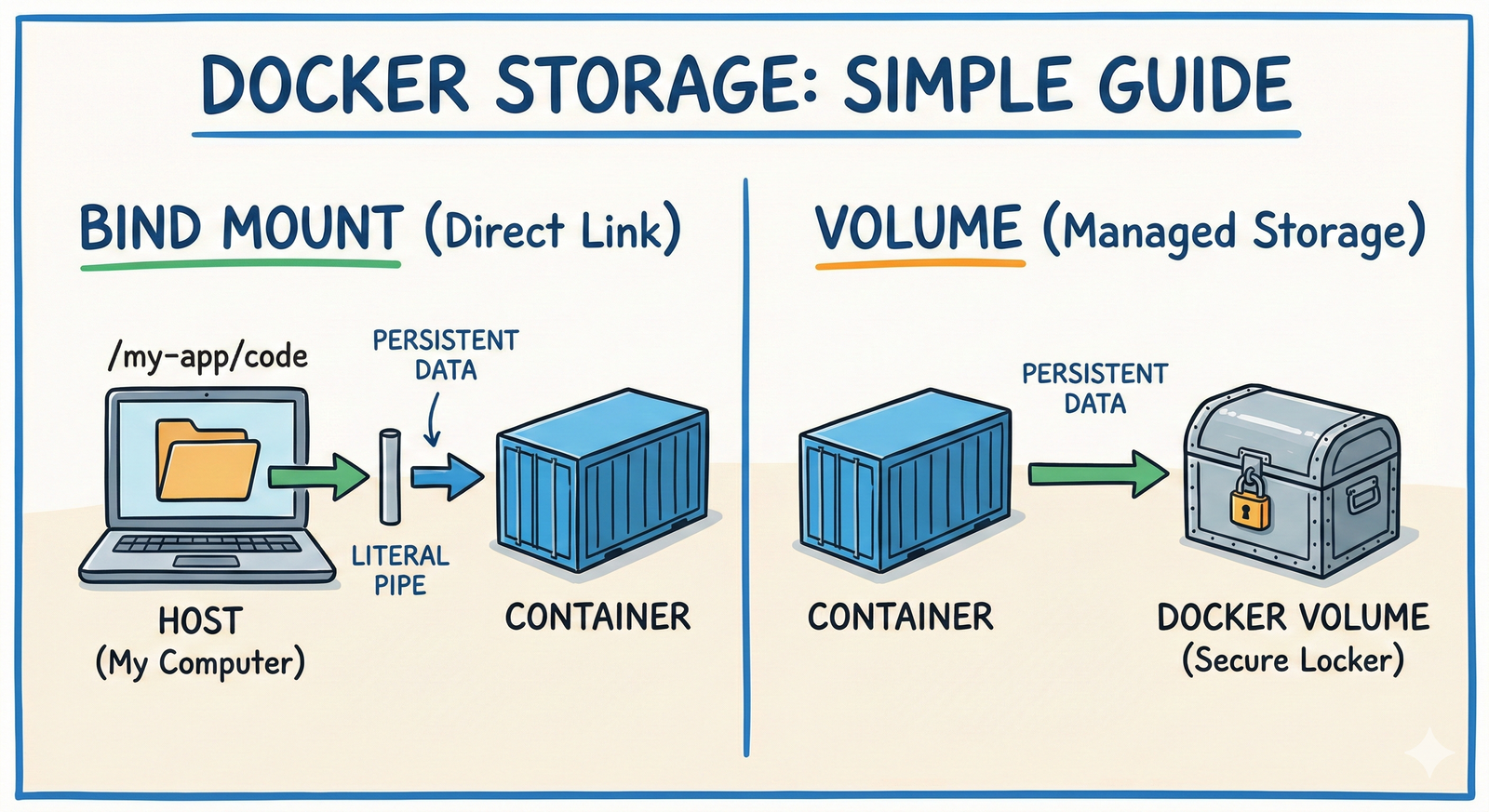
This is why Docker has two main ways to handle data:
- Volumes: Special storage areas managed by Docker, kept separate from the container lifecycle.
- Bind mounts: Docker folders mapped directly to folders on your host machine.
Both keep your important data safe from container deletion or recreation.
Bottom line: The container is ephemeral, but the data isn’t. Back up the data, not the container.
What to Back Up When Using Docker
So what exactly do you need to back up?
1. Docker Volumes
Volumes store anything your container needs long-term — databases (like MySQL or MongoDB), uploaded files, configs, or logs. If you use Docker volumes, these are your primary backup target.
Example: If you run a WordPress site in Docker, the posts, images, and settings are all in a volume. Losing this volume means losing your site’s actual content.
2. Application Data Outside Containers
If your container writes files to specific folders on your host machine using bind mounts, back those up too. Some containers use these to keep data, especially in local or development setups.
3. Configuration Files
This includes your Docker Compose YAML files or any scripts and environment variable files you use to define how the container runs. These files let you recreate containers exactly how you want.
Bonus tip: Storing these in version control (like Git) makes tracking changes and recovery smoother.
4. Docker Images (Optional)
The container image is the blueprint for your app. It can be rebuilt or pulled from registries, but if you use custom images or modified versions, you may want to back these up too. For most beginners, it’s enough to rebuild or download images again when needed.
How to Back Up Docker Volumes Step-by-Step
Let’s say you have a Docker volume named mydata_volume. Here’s how to back it up:
Backing Up a Volume Manually
# Create a container to copy from the volume
docker run --rm -v mydata_volume:/volume_data -v $(pwd):/backup busybox \
  tar czf /backup/mydata_volume_backup.tar.gz -C /volume_data .
What’s happening here? We use a temporary busybox container that mounts your volume and your current folder. It tars (archives) everything in the volume to a compressed file in your local folder.
To restore:
# Restore volume contents from the backup archive
docker run --rm -v mydata_volume:/volume_data -v $(pwd):/backup busybox \
  sh -c "cd /volume_data && tar xzf /backup/mydata_volume_backup.tar.gz"
Automating Backups
For regular backups, you could write a script using the above commands and schedule it with cron on Linux or Task Scheduler on Windows.
Example script snippet:
#!/bin/bash
BACKUP_DIR=/path/to/backup/folder
DATE=$(date +'%Y-%m-%d')
docker run --rm -v mydata_volume:/volume_data -v ${BACKUP_DIR}:/backup busybox \
  tar czf /backup/mydata_volume_backup_${DATE}.tar.gz -C /volume_data .
Common Mistakes and Gotchas
-
Backing up containers themselves: Trying to back up containers by saving them as files (
docker exportordocker commit) is generally unnecessary and can lead to confusing restores. -
Ignoring data outside volumes: Some apps write data inside the container filesystem, which disappears after restart. Check your app’s docs to know where data lives.
-
Not automating backups: Manual backups work but are risky if you forget. Automate as soon as you can.
-
Not testing restores: Backing up is pointless if you can’t restore from it. Regularly test by restoring your backups on a test system.
-
Overlooking configurations: Don’t forget to back up your Docker Compose files, environment variables, and any scripts.
When This Approach Might Not Be Enough
If you run complex production systems with lots of containers, dependencies, networking, and scaling, you might need more advanced tools like:
- Backup orchestration: Tools designed to snapshot and restore entire container clusters.
- Database-specific backups: Databases often have their own backup tools (e.g.,
mysqldump) that are safer to use than raw volume copies. - Snapshotting infrastructure: Using storage-level snapshots or cloud provider backups.
For beginner or small hobby projects, the volume backup approach is usually enough.
Takeaway
When it comes to backing up Docker containers, think less about saving the container itself and more about the data that the container uses and generates. Focus your backup efforts on Docker volumes, bind-mounted files, and your configuration definitions.
By backing up these parts, you retain the real value — the data — while still enjoying the flexibility and ease of containers.
In my setup, a daily cron job tars up volumes and pushes them to an external drive. Whenever I spin up a new machine or recover from a crash, I pull those backups, restore the volumes, and run my trusty Docker Compose files to get back online in minutes.
Keep it simple, automate early, and test your restores — and you’ll never dread the ‘what if’ moments again.











Post Comment